Weekly Task 02 — Affordance
02 Affordance
Affordance refers to: an object or interface "allowing people to do something / suggesting what they should do". Good affordance often does not require an instruction manual; users can simply "take a look" and figure out the next action. For example, if a door has a flat

surface, we naturally "push" it; if it has a handle, we naturally "pull" it. When these cues (signifiers) are not clear, we will encounter the "bad door" as shown in the Vox video - users' confusion is not because they are stupid, but because the design fails to express the affordance. Good accessibility can reduce learning costs, minimize the occurrence of incorrect operations, and make users more efficient and confident.
Different digital devices can provide different types of interaction based on their shape, interface, and purpose. Mobile phones (such as iPhone) can achieve clicking, sliding, and combining operations through touch screens. The small design of mobile phones makes it convenient to perform operations such as taking photos and sending messages.

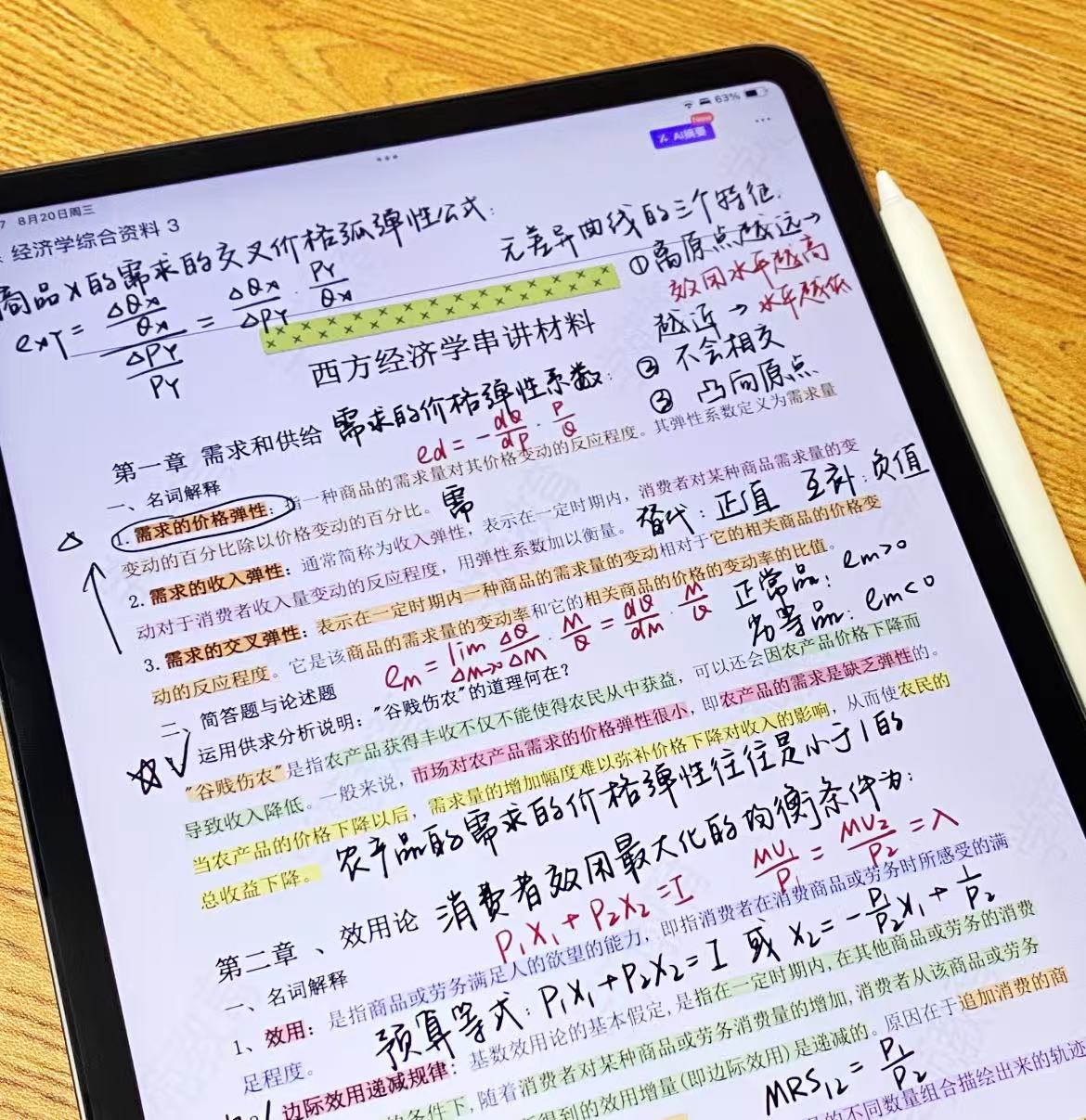
Tablets (such as iPad) offer similar gesture functions, but the operation interface is larger, more suitable for drawing, reading, and watching media content. It also supports stylus input, which helps complete creative tasks such as sketching or note-taking.
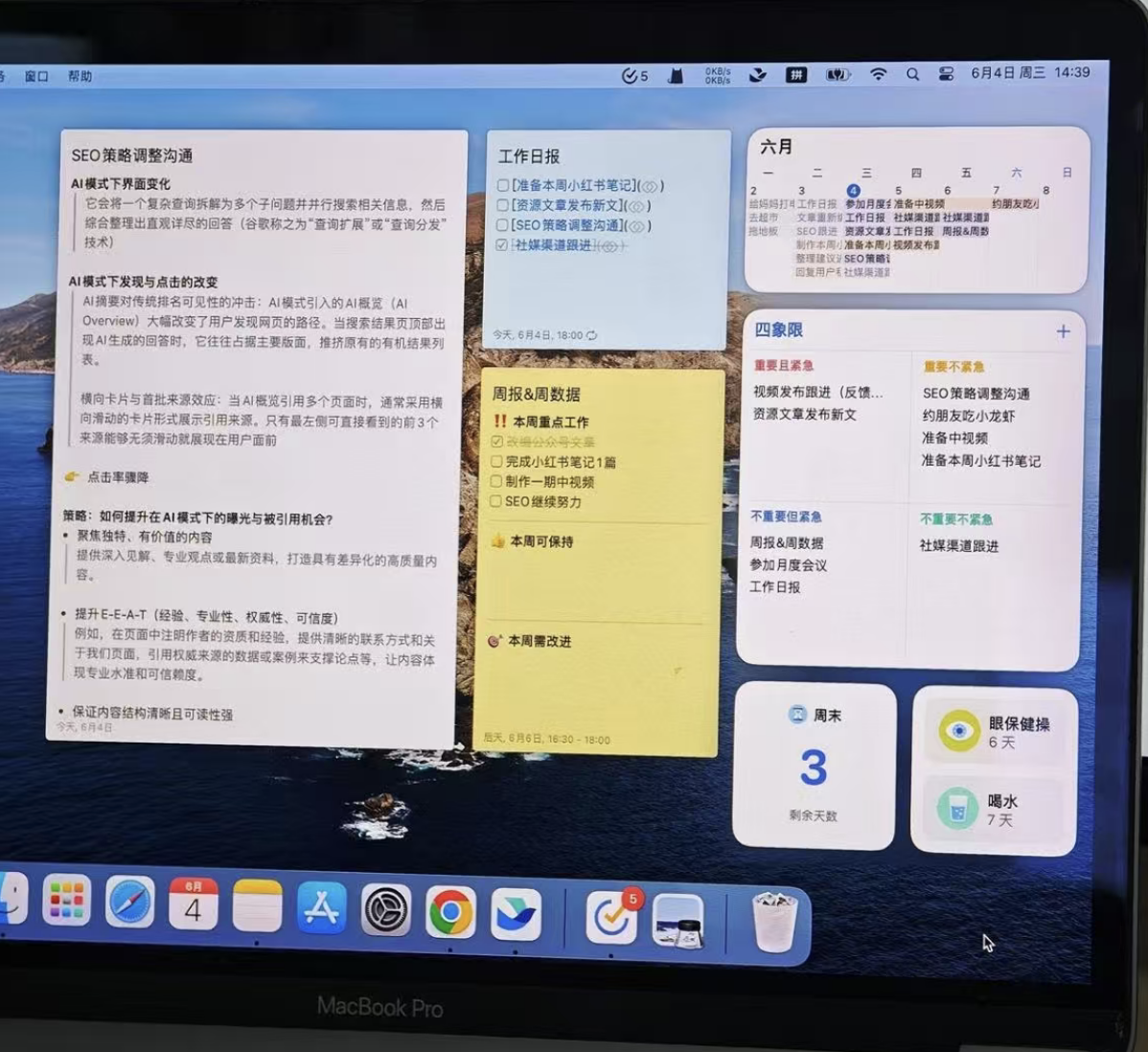
In contrast, laptops (such as MacBook) provide more precise control through their keyboards and touchpads, supporting multi-tasking, text input, and the use of complex software such as design or programming tools.
Comparison List
Input Method
iPhone: Clicking/Sliding is the most smooth, emphasizing "fast"
iPad: Touching + Pen is smoother, emphasizing "write/draw/read"
MacBook: The keyboard and pointer work the best together, emphasizing "precision and efficiency"
Space and Position
iPhone: Anytime, anywhere, one-handed, fragmented
iPad: Desktop/knee-lifted display, immersive content consumption and creation
MacBook: Sit down to work, with multiple windows operating simultaneously
Typical built-in apps are better suited for the tasks.
iPhone: Camera/Messages/Maps → Capture, Communication, Navigation
iPad: Notes/PDF Annotation/Reading → Record, Study, Sketch
MacBook: Finder/Mail/Multi-window Safari → File Management, Writing, Complex Processes
Common "bad affordance" risks
Touch interface: Buttons look like decorations, unclear whether they can be clicked or not
Complex software: Strong functions but hidden entry points, high learning cost
Cross-device: Inconsistent meanings of the same icon/gesture lead to incorrect operations